
Making great videos used to be hard. You needed a fast computer and expensive software. If you used free tools, they often put a big logo over your work. This is called a watermark. It makes your video look unprofessional.
Now, artificial intelligence (AI) helps you edit. AI can do the hard work for you. It can add captions or fix your audio. The best part is that many tools are now free. You can find the best free AI video editors without watermark if you know where to look. This guide lists the top ten tools you can use today.
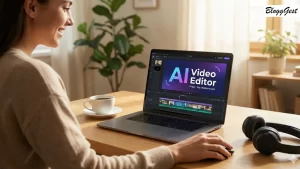
Best Free AI Video Editors Without Watermark
Why Use AI for Your Videos?
AI tools save you a lot of time. In the past, you had to cut every clip by hand. Now, the software does it for you. Here is what AI can do:
- Auto-Captions: The AI listens to your voice. It writes down what you say. It puts these words on the screen as text.
- Remove Silence: AI finds the quiet parts in your video. It cuts them out so the video stays interesting.
- Text-to-Video: You type a few sentences. The AI finds clips that match your words. It builds a basic video for you.
- Fix Sound: If your room is noisy, AI can clean the audio. It makes you sound like you are in a real studio.
Top 10 Free AI Video Editors Without Watermark
- CapCut
CapCut is one of the most popular apps in the world. It works on phones and computers. It is very simple to use.
- AI Features: CapCut has a tool called “Script to Video.” You give it a script, and it finds clips for you. It also has great auto-captions.
- The Watermark: CapCut puts a logo at the very end of your video. You can click that clip and delete it. Then, your video is clean.
- Best For: Making short videos for social media.
- Microsoft Clipchamp
If you have a Windows computer, you already have this tool. It is built into your system.
- AI Features: It has a “text-to-speech” tool. You type text, and a computer voice reads it. The voices sound very human. It also has an auto-compose mode that builds videos for you.
- The Watermark: You can save videos in 1080p for free. There is no watermark on your files.
- Best For: Simple ads and school projects.
- DaVinci Resolve
This is a professional tool. Real movie editors use it. The free version is very powerful.
- AI Features: It uses AI to track moving objects. It can also isolate your voice from background noise. If you film a horizontal video, it can automatically turn it into a vertical one.
- The Watermark: Most features are free. No watermark will show up on your final file.
- Best For: People who want the best quality possible.
- VN Video Editor
VN is a great app for your phone. It feels like professional software but stays simple.
- AI Features: It can detect the beat of your music. It helps you cut your clips so they match the song. This makes your videos look much better.
- The Watermark: VN does not add a watermark to your work. It is truly free.
- Best For: Travel videos and vlogs.
- Descript
Descript is different from other editors. It turns your video into a text document.
- AI Features: To edit the video, you just edit the text. If you delete a word in the script, the video clip disappears too. It can also remove “um” and “uh” sounds automatically.
- The Watermark: The free plan lets you save videos without a logo. There are limits on how much you can transcribe each month.
- Best For: Interviews and podcasts.
- Canva
Most people use Canva for photos. Now, it has a strong video tool.
- AI Features: You can use “Magic Design.” You tell it what you want, and it makes a video. It also has a tool to remove backgrounds from your videos.
- The Watermark: If you use your own videos and free music, there is no watermark.
- Best For: Small businesses and teachers.
- Shotcut
Shotcut is open-source software. This means it is free for everyone forever. It works on Windows, Mac, and Linux.
- AI Features: It has plugins that use AI. These plugins help fix colors and reduce noise in your clips.
- The Watermark: There are no watermarks at all.
- Best For: People who want to edit without an internet connection.
- Leonardo.ai
Leonardo started as a tool for pictures. Now, it can make short videos too.
- AI Features: You upload a photo. The AI makes parts of the photo move. It looks like a real camera shot.
- The Watermark: You get free points every day. You can use these to make videos without logos.
- Best For: Adding cool clips to your YouTube videos.
- ScreenPal
This tool helps you record your screen. It is great for showing people how to use software.
- AI Features: It can automatically add subtitles to your screen recordings. It also has an AI background remover. You don’t need a green screen.
- The Watermark: Standard projects do not have a watermark on the free version.
- Best For: Tutorials and training videos.
- Flixier
Flixier runs in your web browser. You do not have to download anything.
- AI Features: It uses AI to fix your audio levels. It also has a fast subtitle generator. Since it runs on a website, it is very fast.
- The Watermark: It has a free version with no watermark. You are limited on how many minutes you can save each month.
- Best For: People with slow computers or Chromebooks.
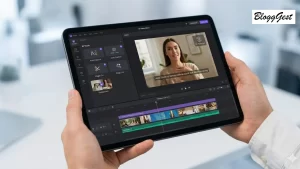
Best Free AI Video Editors Without Watermark
How to Choose the Right Tool
Each tool has a different strength. Think about what you need to make.
For Social Media: Use CapCut. It has the best stickers and music for phone videos.
For High Quality: Choose DaVinci Resolve. It is the most powerful free tool you can find.
For Talking Videos: Use Descript. It makes editing your voice very easy.
For Speed: Use Canva. It has templates that make the work fast.
Tips for Saving Your Videos
Sometimes, a “free” tool will try to trick you. Follow these steps to keep your video clean:
- Watch the End: Apps like CapCut add a small clip at the end. It shows their name. Just tap that clip and hit delete before you save.
- Stick to Free Assets: Many editors have “Pro” songs or filters. If you use one, you might see a watermark. Only use things that are labeled as free.
- Create an Account: Most websites want you to log in. Usually, you must sign in to download your video without a logo.
The Verdict
You do not need to pay a lot of money to edit videos. AI makes it easy for anyone to be a creator. The best free AI video editors without watermark are ready for you to use.
If you are a beginner, start with CapCut. It is the easiest to learn. If you want more power, try DaVinci Resolve. Both will give you great results for free. Pick a tool and start your first project today.
Frequently Asked Questions
Q: Is AI video editing really free?
A: Yes, many tools have a free version. They offer basic AI features at no cost. You only pay if you want extra storage or special effects.
Q: Do I need a fast computer to use AI?
A: Not always. Tools like Canva and Flixier work in your web browser. They use their own servers to do the hard work. You can use them on an old laptop.
Q: Why do some free editors add a watermark?
A: Companies add watermarks to advertise their brand. They want you to pay to remove it. The tools in this list let you save videos without those logos for free.
Q: Can AI make a whole video for me?
A: AI can build a basic video using your script and stock clips. However, you should still check the work. You might want to change a few shots to make it perfect.
Q: Are AI subtitles accurate?
A: AI is very good at hearing voices. It is usually about 95% correct. You should always read through the text to fix any small spelling mistakes.
Q: Is it safe to use these AI tools?
A: The tools on this list are well-known and safe. Make sure always that you are on the official website before uploading the video.
